
Download VM Horizon Client – Secure Remote Desktop, Virtual Workspace, Free Tool
Overview of VM Horizon Client
VM Horizon Client, developed by VMware, Inc., is a robust virtual workspace solution that brings the power of desktop virtualization to every end‑user, whether they are in the office, at home, or on the move. By separating the desktop environment from the underlying hardware, the client enables secure, on‑demand access to a full Windows, Linux, or macOS desktop as well as individual applications hosted on a VMware Horizon infrastructure. This architecture not only reduces the total cost of ownership for enterprises but also streamlines IT management through a single, centralized platform.
Users benefit from a consistent experience across devices—Windows PCs, Macs, Android tablets, and iOS smartphones—while administrators gain granular control over security policies, resource allocation, and software delivery. The client’s “Entitlement” feature ensures that each employee receives the appropriate virtual desktop or application based on role, location, and compliance requirements. In practice, this means a designer can launch a graphics‑intensive Windows workstation from a MacBook, a support agent can pull up a pre‑configured Linux terminal on an Android tablet, and a developer can debug code on a remote Windows VM—all without ever touching a physical machine.
The result is a modern, flexible, and secure workspace that adapts to the evolving needs of today’s distributed workforce.
Key Features That Set VM Horizon Client Apart
- Cross‑Platform Compatibility: Native clients for Windows, macOS, Linux, Android, and iOS ensure a seamless experience on any device.
- High‑Performance Graphics: Support for PCoIP, Blast Extreme, and HDX protocols delivers crisp visuals and low latency, essential for design and engineering workloads.
- Secure Authentication: Multi‑factor authentication (MFA), smart‑card integration, and RSA SecurID protect remote connections against unauthorized access.
- Entitlement Management: Role‑based access controls let administrators assign specific desktops or apps to users, simplifying licensing and compliance.
- Stateless Desktop Support: Rapid provisioning of non‑persistent desktops reduces storage costs and speeds up user onboarding.
- USB Redirection & Peripheral Support: Connect local devices such as printers, scanners, or dongles to the remote desktop without compromising security.
- Adaptive Policies: Dynamic bandwidth management and power‑saving modes adjust performance based on network conditions.
- Integrated Workspace Management: One‑click access to both full virtual desktops and published applications via a unified catalog.
- Zero‑Trust Network Integration: Compatibility with VMware NSX and third‑party VPN solutions for end‑to‑end encryption.
- Automatic Updates: Background patching ensures the client remains secure and up‑to‑date without user intervention.
Installation Guide and System Compatibility
Installing VM Horizon Client is straightforward, thanks to the intuitive installer packages provided for each operating system. Below is a step‑by‑step guide that covers the most common platforms.
Windows (10/11, Server 2016+)
- Download the .exe installer from the official VMware Horizon download page.
- Run the installer with administrator privileges.
- Accept the license agreement and choose the default installation path.
- During the component selection, enable “USB Redirection” and “HTML Access” if needed.
- Complete the installation and reboot the system if prompted.
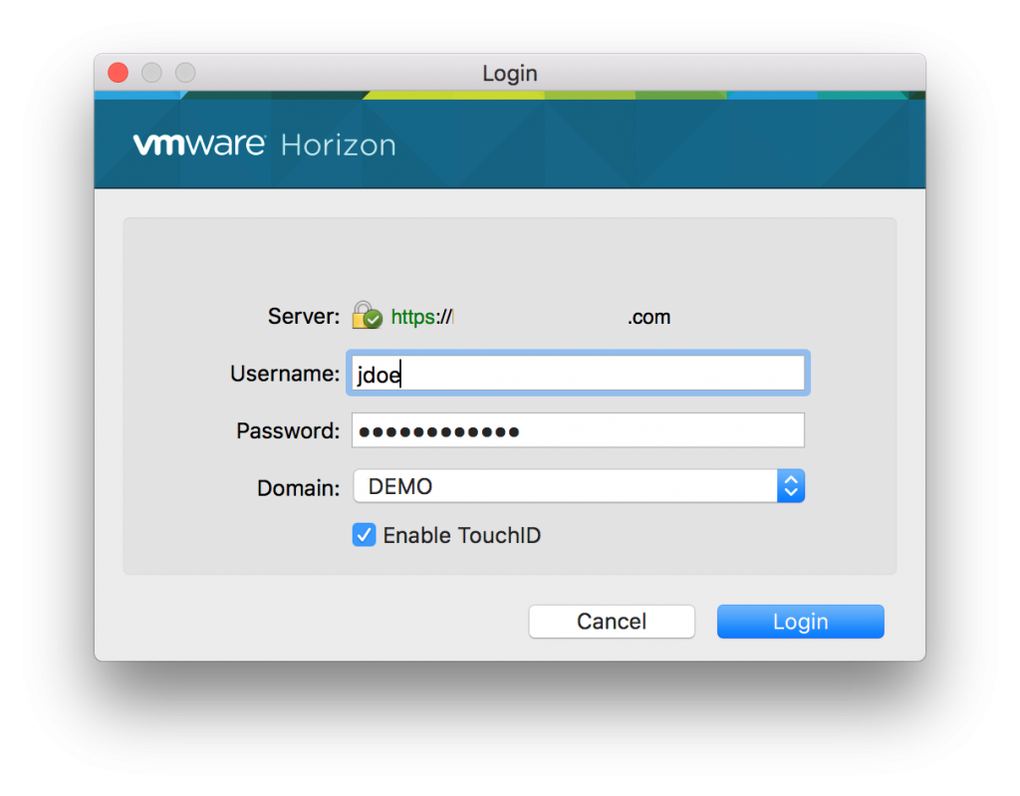
- Launch the Horizon Client, enter your organization’s server address, and authenticate using your corporate credentials.
macOS (Catalina 10.15 and later)
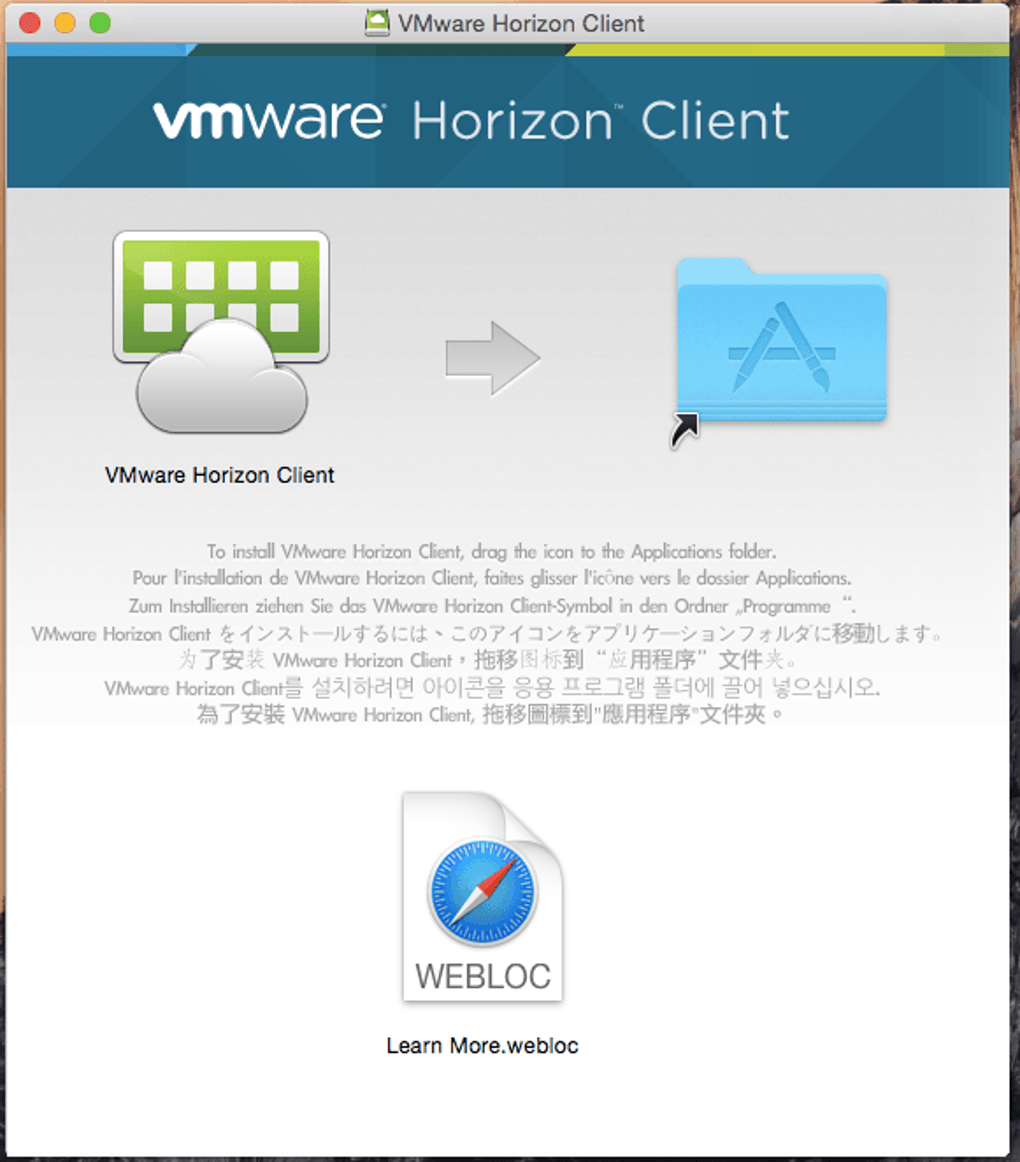
- Download the .dmg file from VMware’s site.
- Open the disk image and drag the Horizon Client icon to the Applications folder.
- Open System Preferences → Security & Privacy → General, and allow the app to run if macOS blocks it.
- Start the client, input the connection server URL, and log in with your corporate SSO or MFA token.
Linux (Ubuntu 20.04+, RHEL 8+)
- Obtain the .deb or .rpm package based on your distribution.
- Install via
sudo dpkg -i horizonclient.deborsudo rpm -ivh horizonclient.rpm. - Resolve any dependency issues with
sudo apt-get -f installorsudo yum install. - Run
vmware-viewfrom the terminal or launch from the desktop menu.
Android & iOS
- Open Google Play Store or Apple App Store and search for “VMware Horizon Client”.
- Tap “Install” (Android) or “Get” (iOS) and wait for the download to finish.
- Open the app, add a new server by entering the URL, and authenticate using your corporate credentials.
- Enable optional features like “Biometric Unlock” for faster log‑ins.
The client supports Windows 10/11, Windows Server 2016+, macOS Catalina and later, major Linux distributions (Ubuntu, RHEL, CentOS), Android 8.0+, and iOS 13+. Minimum hardware requirements include a dual‑core CPU, 4 GB RAM, and 1 GB of free disk space for the client installation. For graphics‑intensive sessions, a GPU‑accelerated device is recommended.
After installation, it is advisable to verify that the firewall allows outbound TCP ports 443 (HTTPS) and 8443 (Blast/PCoIP) to communicate with the Horizon Connection Server. For organizations using a VPN, ensure that split‑tunneling is configured so that the client routes traffic directly to the virtual desktop pool. Regularly check for updates within the client’s “Help → Check for Updates” menu to keep security patches current.
Pros, Cons, Frequently Asked Questions, and Final Verdict
Pros
- Excellent cross‑platform support—one client works on Windows, macOS, Linux, Android, and iOS.
- High‑performance graphics protocols make it suitable for design, engineering, and media workloads.
- Robust security with MFA, smart‑card, and zero‑trust networking integration.
- Simple, silent updates reduce administrative overhead.
- Stateless desktop capability lowers storage costs and accelerates provisioning.
Cons
- Initial setup requires a VMware Horizon infrastructure, which may be costly for small businesses.
- Performance can degrade on low‑bandwidth connections despite adaptive policies.
- Advanced features (e.g., USB redirection) may need additional licensing.
- Linux client UI feels less polished compared to Windows/macOS versions.
Frequently Asked Questions (FAQ)
Is VM Horizon Client free to use?
The client software itself is free to download and install. However, you need a licensed VMware Horizon infrastructure (Connection Server, Composer, etc.) on the backend to create and deliver virtual desktops or applications.
Can I connect to multiple Horizon farms from a single client?
Yes. The client supports adding multiple server entries, allowing users to switch between different Horizon farms or data centers without reinstalling the software.
What security protocols does the client use?
VMware Horizon Client uses TLS 1.2/1.3 for all data in transit, supports multi‑factor authentication, smart‑card, and can be integrated with VMware NSX for zero‑trust network segmentation.
How does the client handle USB devices?
USB redirection is built‑in, allowing you to map local peripherals (e.g., printers, dongles) to the remote desktop. Administrators can enable or disable this feature per user or per policy.
Is there a way to improve performance on a slow network?
Enable “Adaptive Display” in the client settings, which automatically lowers resolution and frame rate based on bandwidth. Additionally, choose the Blast Extreme protocol with UDP for better performance on high‑latency links.
Conclusion – Should You Download VM Horizon Client?
VM Horizon Client delivers a compelling blend of security, performance, and flexibility that makes it a top choice for enterprises looking to modernize their remote work strategy. The free client, combined with VMware’s mature virtualization backbone, enables organizations to provide a consistent digital workspace to developers, designers, support staff, and virtually any knowledge worker. While the initial infrastructure investment can be a barrier for very small teams, the long‑term savings in hardware, maintenance, and energy costs often outweigh the upfront expense.
If your company already uses VMware Horizon or plans to adopt a virtual desktop infrastructure, downloading the client is a no‑brainer. Even for businesses evaluating a move to VDI, trying the client free of charge provides a realistic glimpse of the end‑user experience. Install it today, connect to your Horizon server, and experience a secure, high‑performance workspace that works anywhere.
Overall Rating: 4.5 / 5







